

Work through a landscape design one space at a time. Instead of managing the whole property as one giant list of plants – break it into pieces.
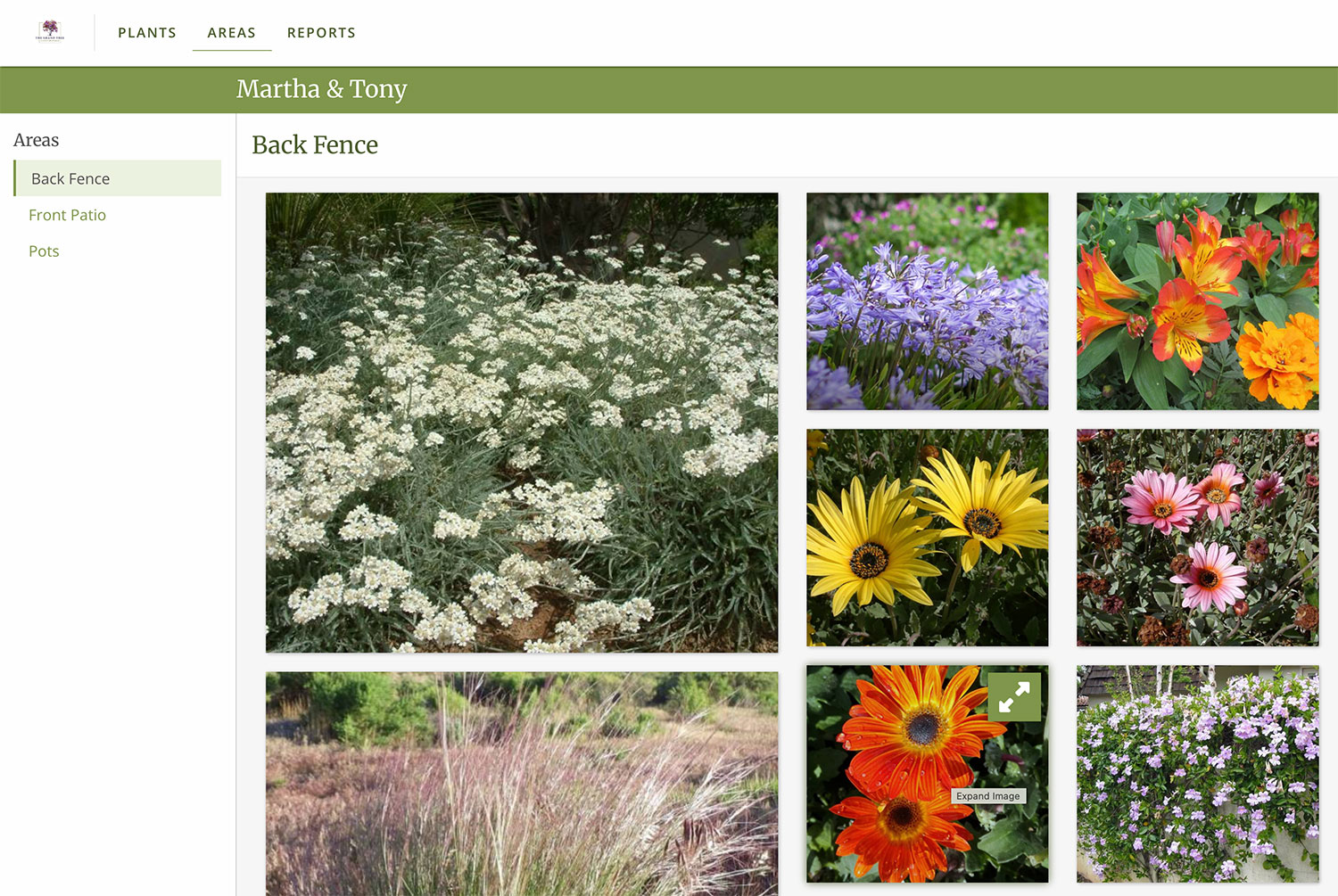
Every project has rooms.
Now your plant list does too.
Imagine you’re redesigning your house.
You wouldn’t look at furniture for every room at the same time. That would be overwhelming.
No, you’d move through the options room by room – explore all the living room pieces together, then the dining room, and you’d want to make sure the spaces feel cohesive as you go, right?
We think your plants deserve the same treatment. Room by room. Space by space. Area by Area.
What is an Area in PlantMaster?
Think of Areas as your way to organize plants into their rooms – one Area for each part of the property – so you can work through the design room by room instead of all at once.
Areas can be the different spaces, drip zones, planter beds, collections, or even phases. It’s completely up to you.
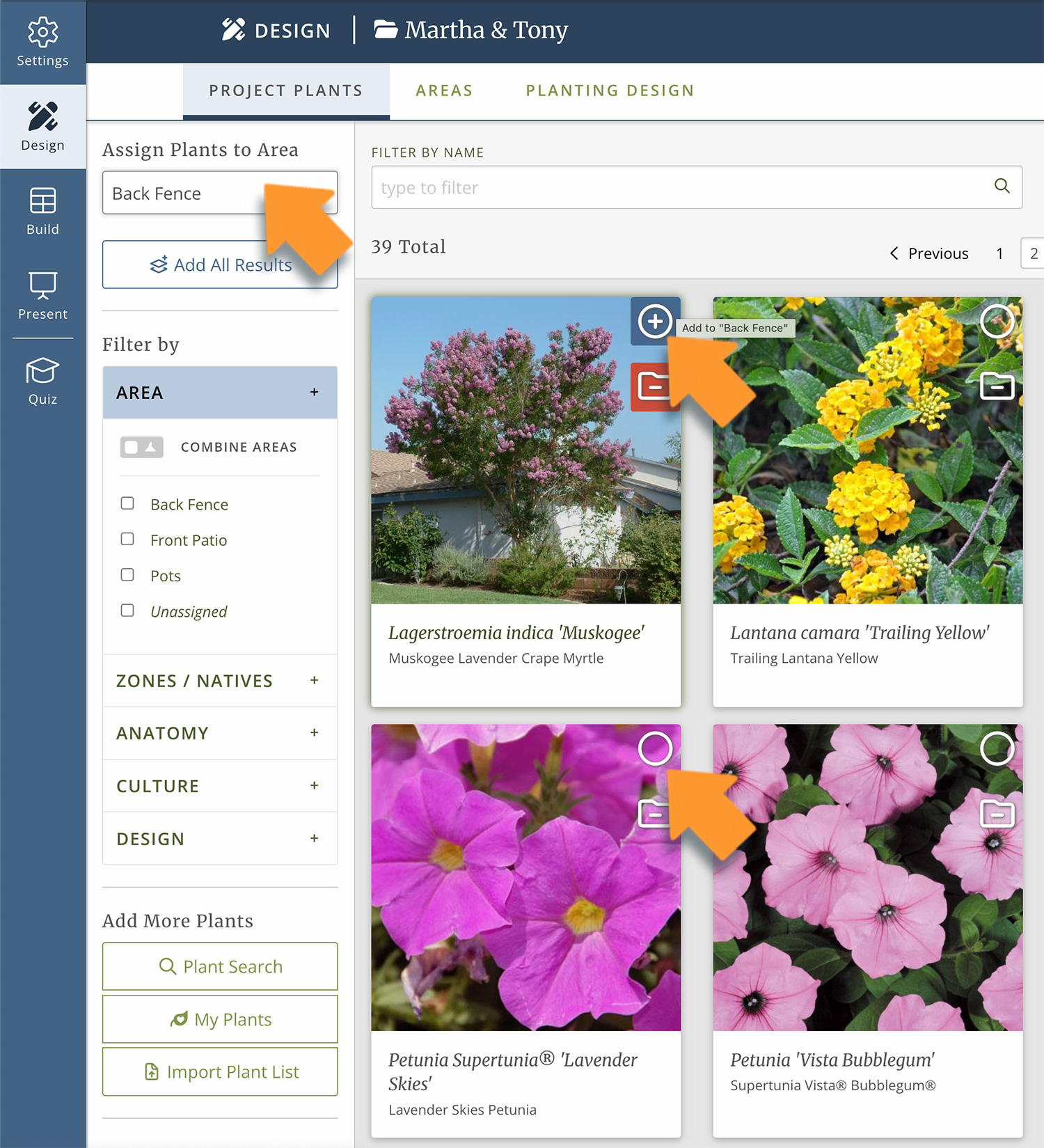
Create an Area, name it whatever you want, and assign plants to it.
Add as many plants as you want, move them between Areas, and update as needed.
And the best part, all the work you do here automatically shows up in everything you send to your client. Every report, presentation, and schedule – all delivered with the same Areas structure.
Let’s take a closer look at how to use Areas.
EARLY IN THE PROJECT
Start organizing before the design is finalized.
Early in the project you’ve got lots of ideas, but they’re all over the place. You’ve got a mental checklist, some notes, plants you’re considering – but nothing concrete and ready to show your client.
At this stage, you don’t need a final plan. You need a place to organize your ideas. Areas are the perfect home for those ideas. The front entry plants live here. The herb garden plants live there.
When you put plants into their spaces, you instantly have something to show your client instead of trying to walk them through what’s in your head.
Here’s what I’m thinking of for the front entry. Here are the shrubs with purple flowers that I recommend for your space. Here’s all the herbs you requested for the kitchen garden.
It doesn’t have to be perfect at this stage. But it’s a great way to start the conversation and speed up the plant approval process.
AS THE DESIGN DEVELOPS
Refine your plants space by space.
As the project develops, the Areas evolve and start housing your final plant options. They’re not placeholders anymore.
Now you’re ready to really dig in and make your final decisions.
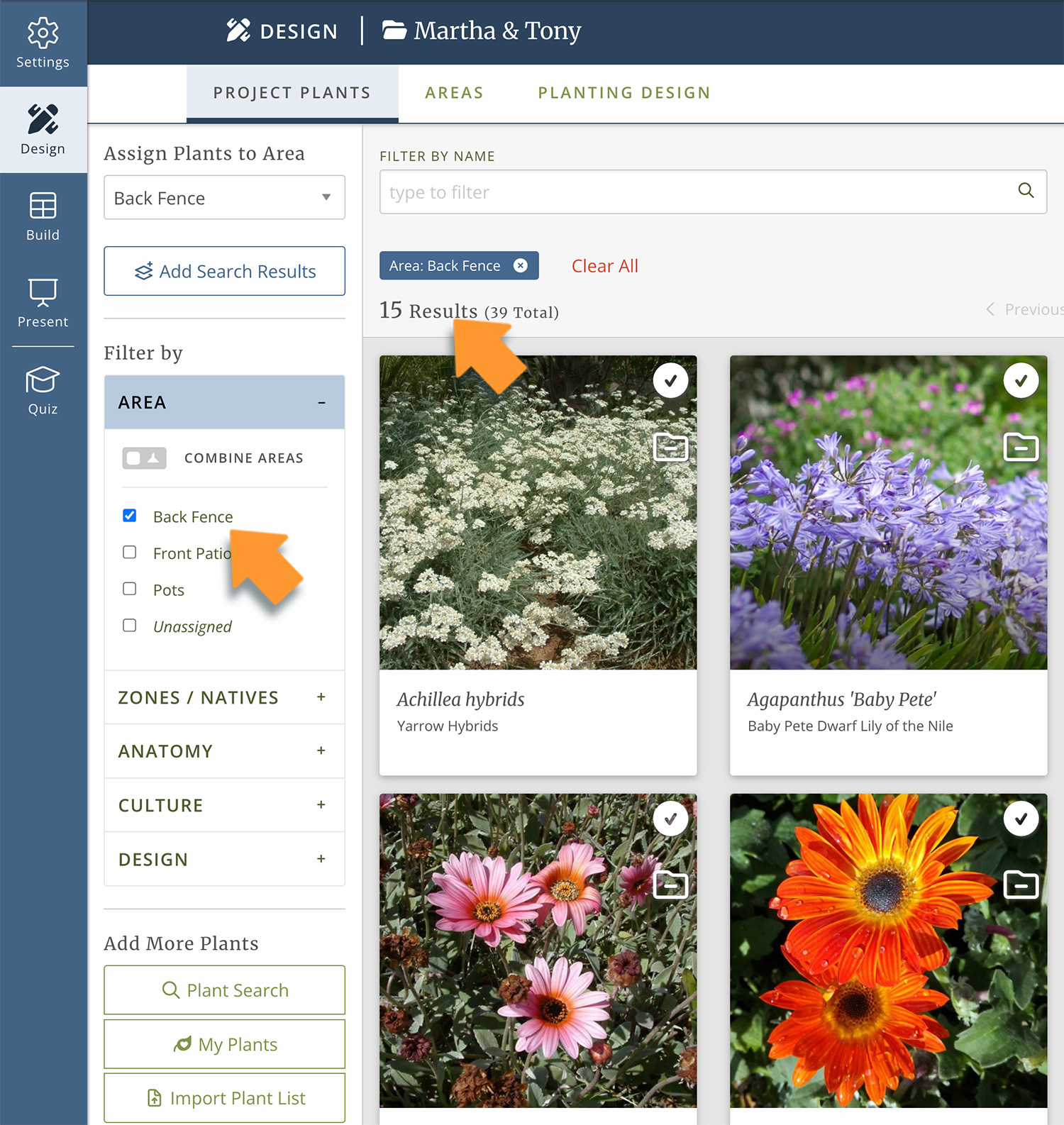
Because your plants are organized by Area, you can zoom into one Area and really check your work.
Is there something in bloom in every season? Do I have enough purple in this space? Do I have enough winter interest?
Just pull up the Area you’re working on. You’ll see only those plants. Work through them, refine your plant list. And when you’re ready, zoom back out and see how it all fits together.
That’s the power of working with Areas! Zoom in for total focus when you need it, and zoom out for the full picture – all from one workspace.
You control what your client sees.
Show only what you’re ready to share.
You decide which Areas are visible in the deliverables – presentations, reports, and schedules.
Feel free to develop concepts, alternates, and phases inside one project. Hide what isn’t ready.
Your client sees the polished presentation. You’ll still see all the options in your workspace.
Don’t use the term “Areas”?
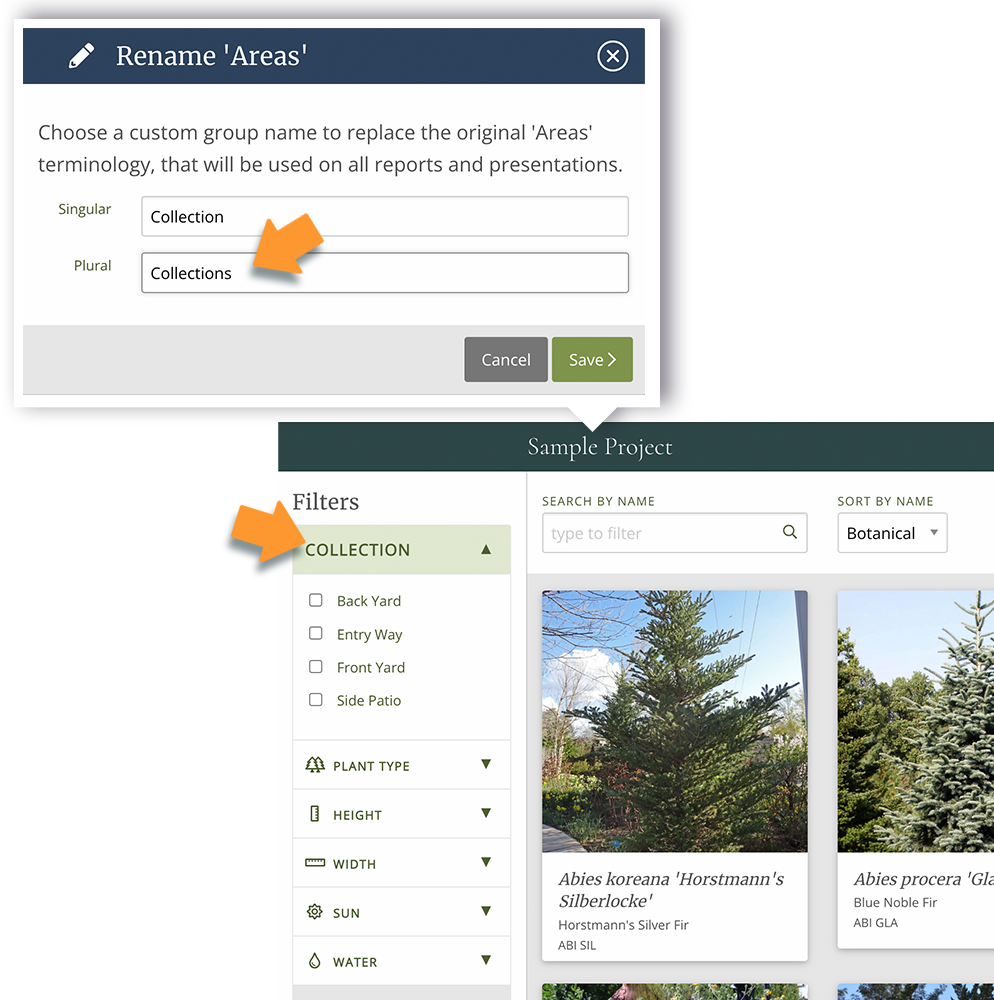
The term Areas is just the default. If you call your spaces Rooms, Zones, Beds, or Collections – change the reference name to anything you want!
Call them Phases in one project, Collections in the next – change it project to project as you need.
“I wish I could remember the exact words, but my clients called me last week after I sent a presentation that broke all the plants down into Areas and they just loved it.
It helped them really visualize the plants I had chosen.
They were excited to see the different blooms, the leaf colors and textures, they could see even with plants not in bloom that there is lots of interest to enjoy.”
Connie Lefkowitz | CL Gardens