

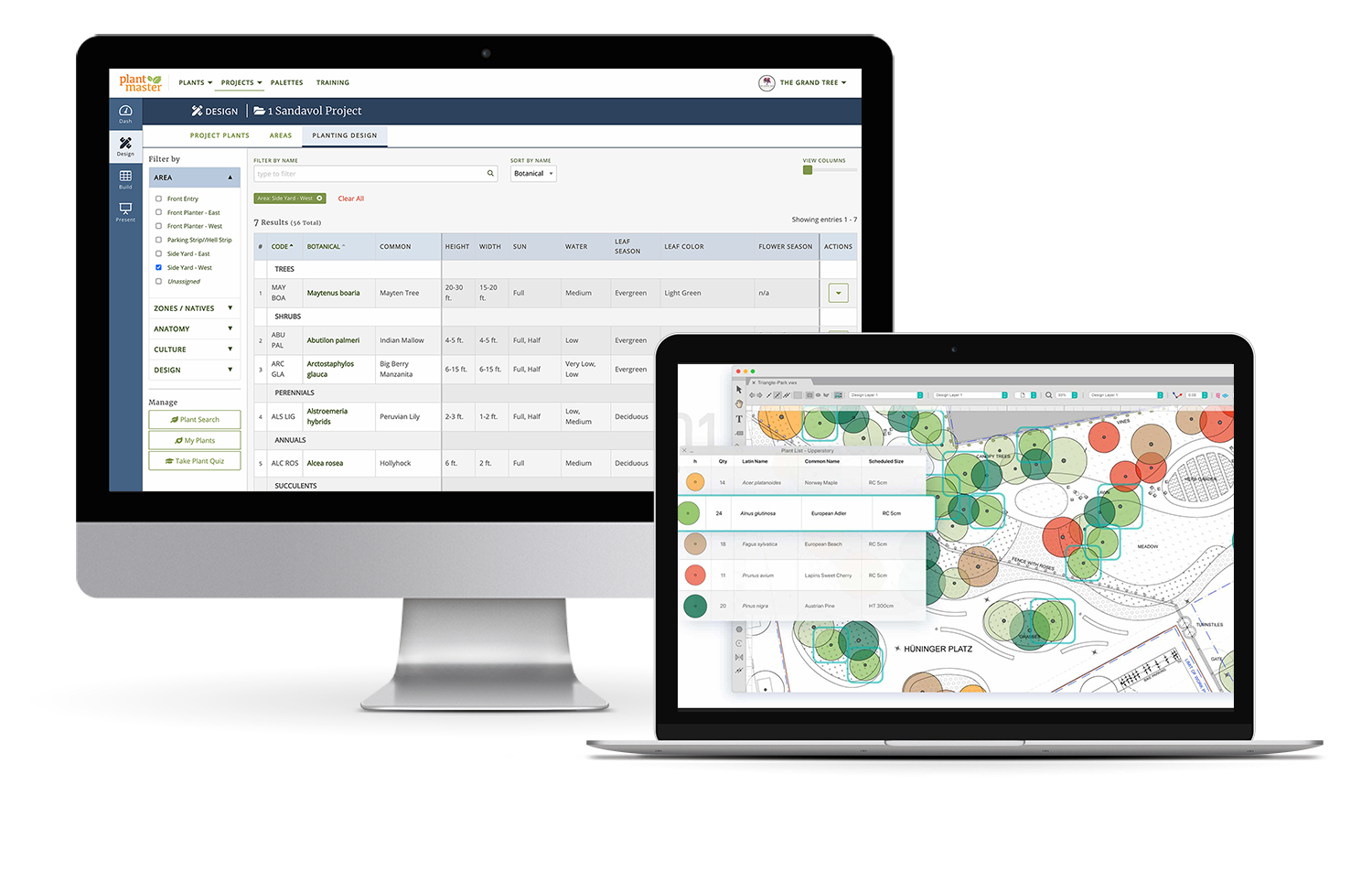
The planting design tool is a live spreadsheet of all the plants in your project. Use it to arrange your plants from shortest to tallest, or find everything that blooms in June – without having to leave your drawing.
What is the Planting Design view?
When you sit down to draw, you need your plants in front of you.
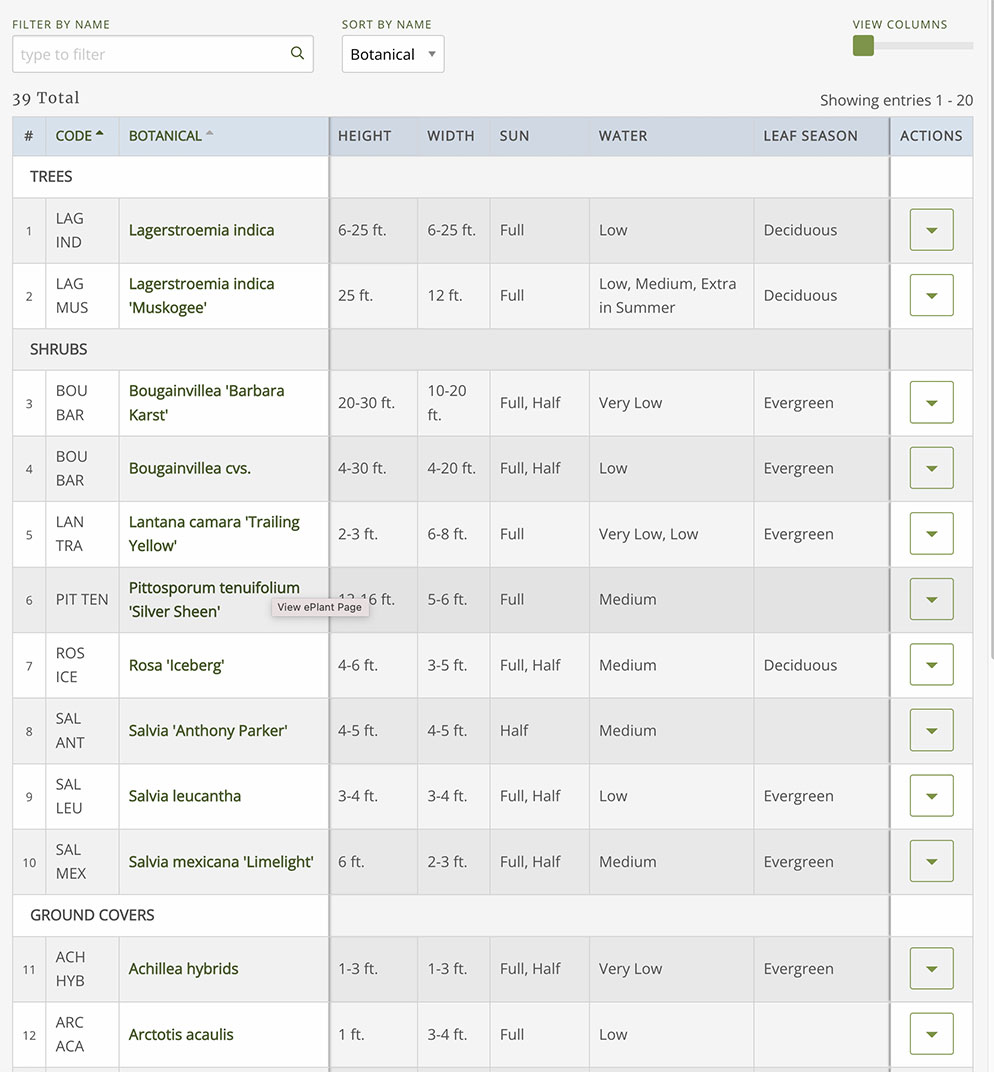
The Planting Design tool is a live spreadsheet that shows you all the plants you’ve added to your project. Each row is a plant and each column is a key piece of information about that plant – how tall it gets, how much sun it needs, what color flowers it has, and so on.
Every piece of information about the plant – from size, to flower color, to water requirements – is something you can use to sort or filter through your list.
So, if you work by placing plants from tallest to shortest, you can sort all your plants by height. Or if you need to find something that grows in wet conditions and tolerates shade – use the filters to help you find the best options.
You already chose the best plants for the project, this tool just makes it easier to pinpoint the right plant for every specific condition or spot as you work through the design.
How to use it.
Have PlantMaster open to the Planting Design spreadsheet while you draft or draw. You can have in open on a second monitor or right next to your drawing.
That way you never need to leave your workspace. When a question or design challenge comes up you glance at your plant list, find your answer, and go right back to designing.
Say you’re designing a thick border and client requested lots of purple and pinks. You want shorter things in the front, taller in the back – so you use the tools to sort all plants from shortest to tallest.
Then, use the filters to find all the plants with purple and pink flowers. Now you’ve got a great list of the best plants for your border, all ready to be placed.
Or maybe your installing a backyard for a client that will have a wedding there next June. You need to make sure everything is looking spectacular in June!
Filter through your plants to find everything that blooms in June. Then use the tools to cross reference by size, or flower color, or leaf color.
Work one space at a time.
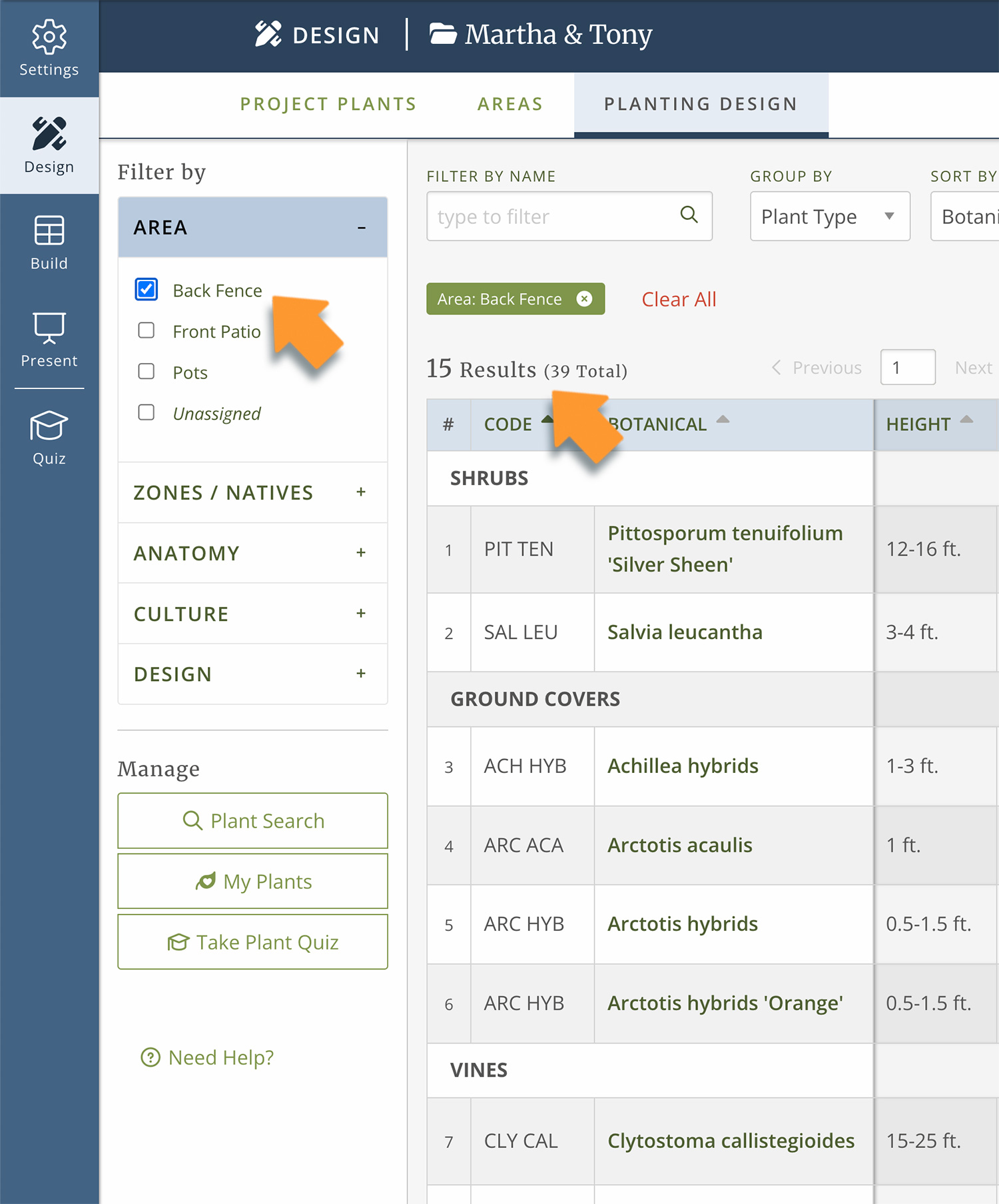
When you’re working on one part of the property, you don’t need to see every plant in the whole project. You just need to see your options for that one space. Use the filters to view just one Area, then use the tools to cross reference color, size, etc for just those plants.
If you’ve organized your plants into space (we call them Areas) – the front entry, the patio garden, the pool area – you can filter by Area. Which means you can set the filters to view just the plants in one Area at a time.
“With its plant-search, organizational, report-generating capabilities, and many other productivity tools, PlantMaster is the fastest, most efficient way I have found to build and curate impressive plant presentations. Clients, given a link to their online plant palettes, can not only view several of each plant’s photos, but also interactively learn about its characteristics, habit, and culture–a much-loved feature for my clients.
PlantMaster has appreciably improved my overall design process, from the first inklings of the design itself on to the final-plan presentation to the client.
Linda Estrin | Linda Estrin Garden Design
Interested in PlantMaster?
SIGN UP TODAY
Check out our pricing and get started!
Ask us anything
On the fence? Tell us your concerns!
“I wish I could remember the exact words, but my clients called me last week after I sent a presentation that broke all the plants down into Areas and they just loved it.
It helped them really visualize the plants I had chosen.
They were excited to see the different blooms, the leaf colors and textures, they could see even with plants not in bloom that there is lots of interest to enjoy.”
Connie Lefkowitz | CL Gardens